How to Customize Map Popups and Info Windows
Design the popups on your map: pick a template, choose the fields, write your own text with field placeholders and add Directions, Website and Call buttons.
Updated · by the mapbow team
A popup is what people see when they click a place on your map. It is where a map stops being a picture and starts answering questions: when does this store open, how much is this house, how do I get there? A good popup shows the three or four things that matter and nothing else. In mapbow every layer has a Popup tab where you can pick a ready-made design, choose the fields, or build your own design with text, photos and buttons – no code needed.
Customising a popup step by step
- Click a place to see its popup. Every point, line and area opens a popup when it is clicked - on your map in the studio and on the shared or embedded map.
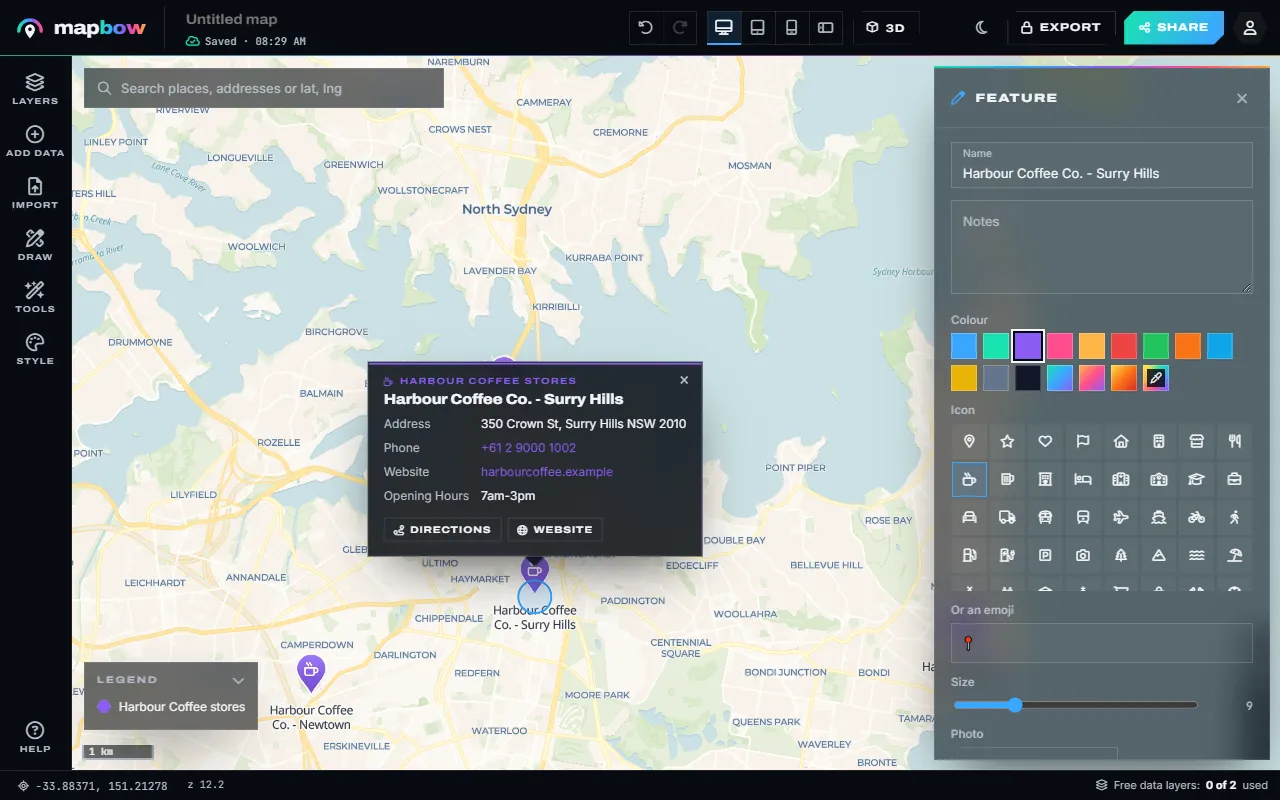
Step 1 The default Card popup: title, details and buttons. - Pick a design. Select the layer and open the Popup tab. Choose a template - Card, Banner, Photo, Compact, Table or Minimal. The open popup changes the moment you click.
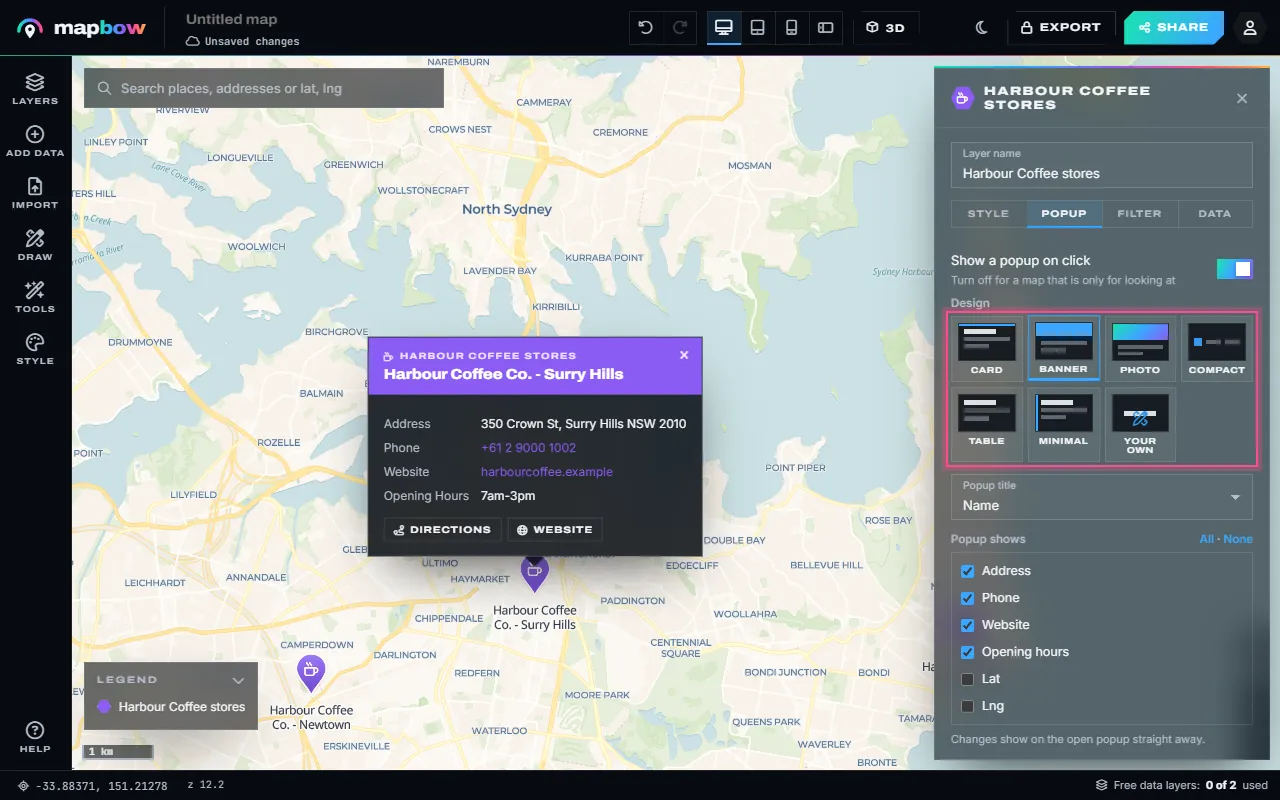
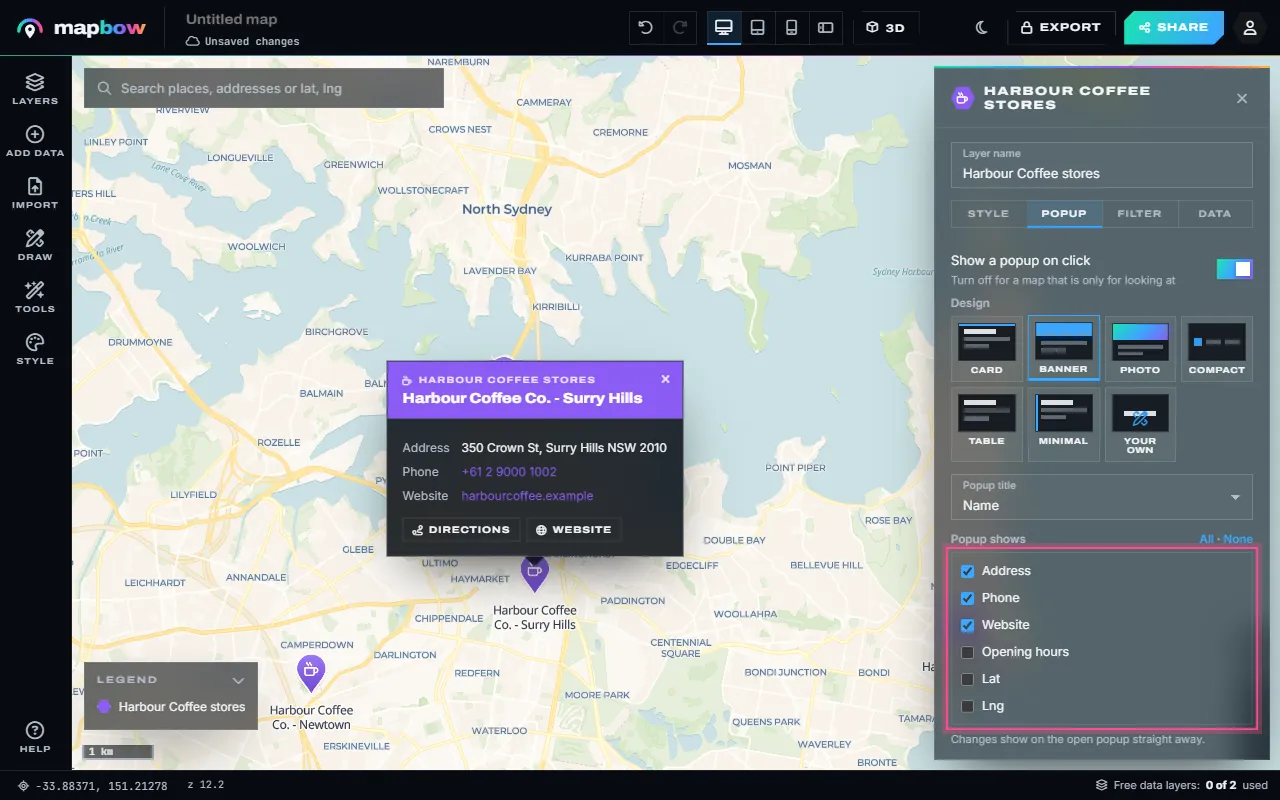
Step 2 The Banner template, applied instantly to the open popup. - Choose what it shows. Pick the field used as the title, then tick the fields the popup lists under Popup shows (All and None are there too). Each tick updates the popup straight away.
Step 3 Opening hours unticked - gone from the popup at once. - Or design your own. Click Your own to open the designer: layout, accent colour, background, text size, width, rounded corners, a photo field, buttons, and your own text with
{{field}}placeholders. The preview uses a real place from the layer.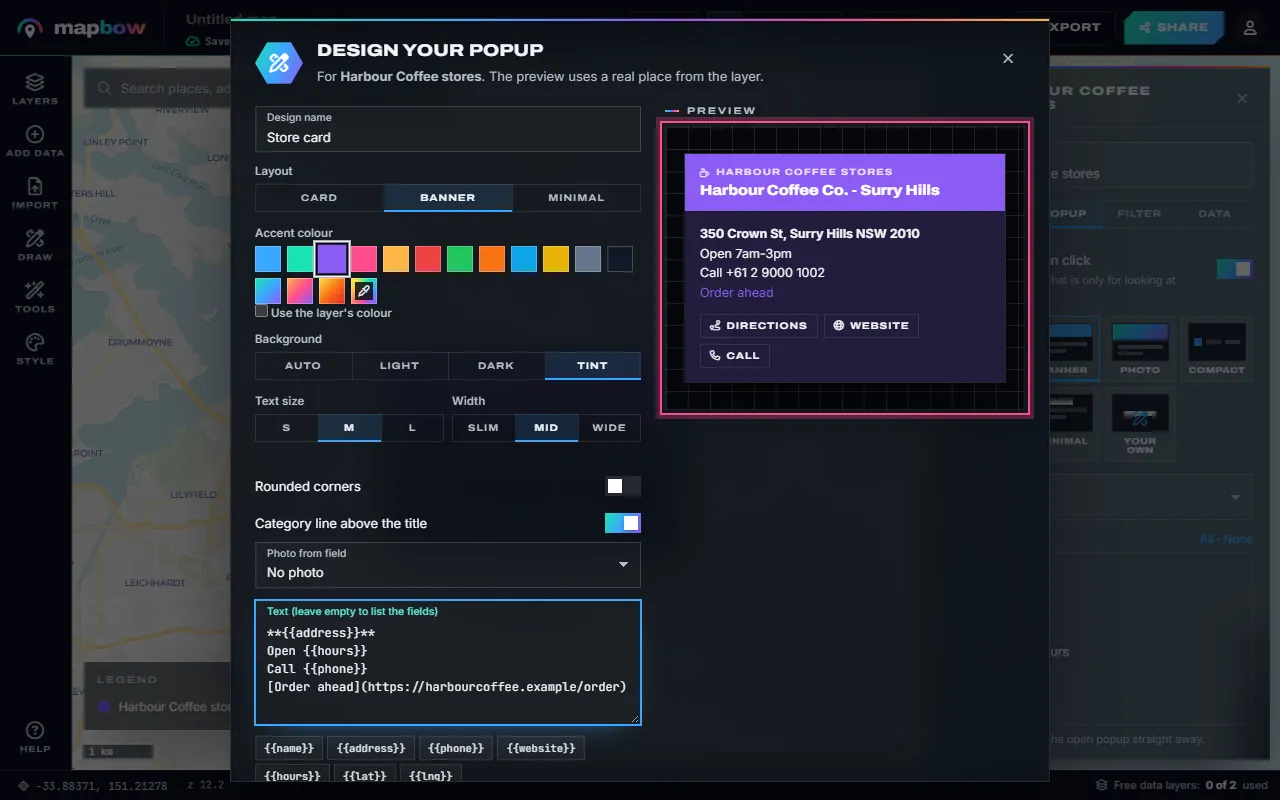
Step 4 The popup designer with a live preview. - Save it and reuse it. Press Use this design. Designs are kept under My designs, so one click puts the same popup on any layer of any map.
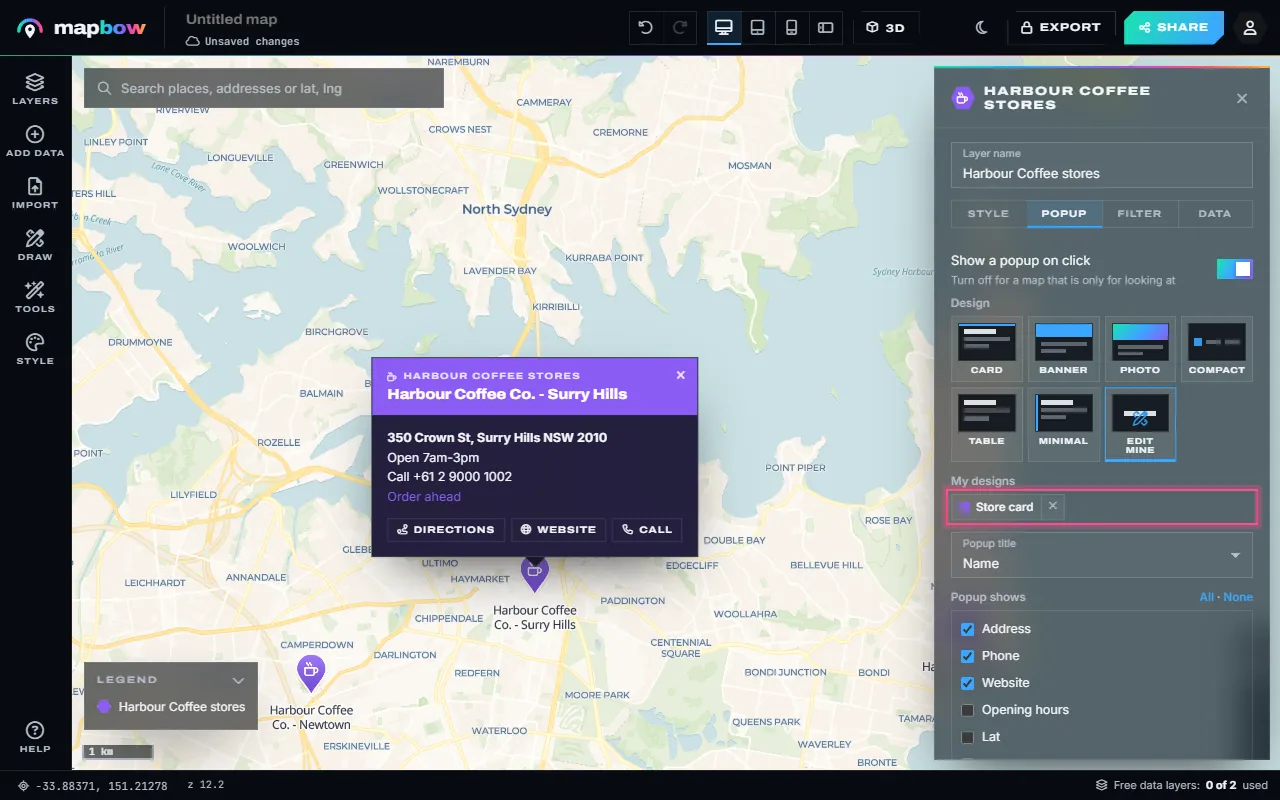
Step 5 The custom popup on the map, saved under My designs.
If no popup is open when you change a setting, a preview opens on a place in view, so you always see the result. To turn popups off for a layer – say, a background layer of boundaries – switch off Show a popup on click.
The six templates
| Template | Good for |
|---|---|
| Card | The all-rounder: title, a few details and buttons. The default. |
| Banner | A coloured header band - strong branding, store and venue maps. |
| Photo | Places with a picture: listings, attractions, walking tours. |
| Compact | Small, quick facts on busy maps with many points. |
| Table | Data-heavy layers where people compare numbers. |
| Minimal | Just the title (and a description, if there is one). |
Templates work on any layer: your imported spreadsheets, drawn shapes and mapbow's ready-made data layers.
Every option in the designer
- Design name – how it appears under My designs.
- Layout – Card, Banner or Minimal.
- Accent colour – pick a swatch, or tick Use the layer's colour so the popup matches the pins.
- Background – Auto, Light, Dark or Tint (a wash of the accent colour).
- Text size S, M or L, and Width Slim, Mid or Wide.
- Rounded corners on or off.
- Category line above the title – a small line naming the layer or type of place.
- Photo from field – a column that holds an image link.
- Text – your own wording with fields mixed in (see below). Leave it empty to list the fields instead.
- Buttons – Directions (opens directions to a point in Google Maps), Website (uses a website field) and Call (uses a phone field). A button only shows when the place has what it needs.
Press Save to My designs to keep a design without applying it, or Use this design to apply it to the layer and save it.
Writing popup text with {{field}}
The text box turns a list of fields into a sentence a person would write. Put a field name in double curly brackets and it is replaced by that place's value. The field names are listed under the box, so you do not need to remember them.
**{{address}}**
Open {{hours}}
Call {{phone}}
[Order ahead](https://example.com/order)**bold**and*italic*for emphasis.[link text](https://...)for a link.- Each new line in the box is a new line in the popup.
- A line whose fields are all empty is left out, so a store with no phone number simply has no "Call" line - no gaps or stray labels.
Popup ideas
Store locator
Banner layout in your brand colour, the address in bold, opening hours, and the Directions, Website and Call buttons. Customers get from "where is it?" to "how do I get there?" in one tap. See how to make a store locator map.
Real estate listings
Photo layout with Photo from field set to your image column, the price as the title, and a line such as {{bedrooms}} bed · {{bathrooms}} bath · {{land_size}}, ending in a [View listing](...) link.
Events and venues
A category line for the type of event, then **{{date}}** at {{time}}, the venue, and a ticket link. Because empty lines are dropped, free events with no ticket link look tidy too.
Popups on shared and embedded maps
Popups on shared and embedded maps use exactly the same design as in the studio, and embedded maps update when you edit the map – change a popup and every website showing the map gets the new version. Press Share for a link or embed code, then follow how to embed a map on your website. Your data has to have the fields first: import a spreadsheet with columns such as address, hours, phone and website, and they are all available to the popup.
Frequently asked questions
Can I choose which fields show in a popup?
Yes. In the layer's Popup tab, pick the title field and tick the fields under Popup shows, or use All and None.
Can I add a photo to a popup?
Yes. Use the Photo template or set Photo from field in your own design to a column of image links. Drawn pins can also have a photo uploaded or linked.
Do I need to know HTML?
No. Templates are one click, and your own text uses {{field}}, **bold**, *italic* and [link](https://...).
Can I reuse a popup design on another map?
Yes. Saved designs appear under My designs and can be applied to any layer on any of your maps.
Do popups work on embedded maps?
Yes. Shared and embedded maps use the same popup design, and update when you change it.
Can I turn popups off?
Yes. Switch off Show a popup on click in the layer's Popup tab.