How to Embed a Map on Your Website
Embed a custom interactive map in WordPress, Squarespace, Wix, Shopify, Webflow or plain HTML. Copy the code, make it responsive and keep it fast.
Updated · by the mapbow team
An embedded map lets visitors explore your locations, service area or story without leaving your page. Done well, it is fast, works on phones and updates itself whenever you edit the map. This guide shows how to embed a mapbow map on the most popular website builders, how to make it responsive, and how to keep it from slowing your page down.
Step by step: get the embed code and add it to your page
Embedding takes four steps: make the map, switch on its link, choose what the embedded map shows, and paste the code into your page.
- Make your map, then press Share. Build the map - here a store list imported from a spreadsheet - give it a title (click the title in the top bar), and press Share. (Sharing needs a free account; it takes ten seconds.) Set a sensible start view first with Tools › Set start view - that is what visitors see first.
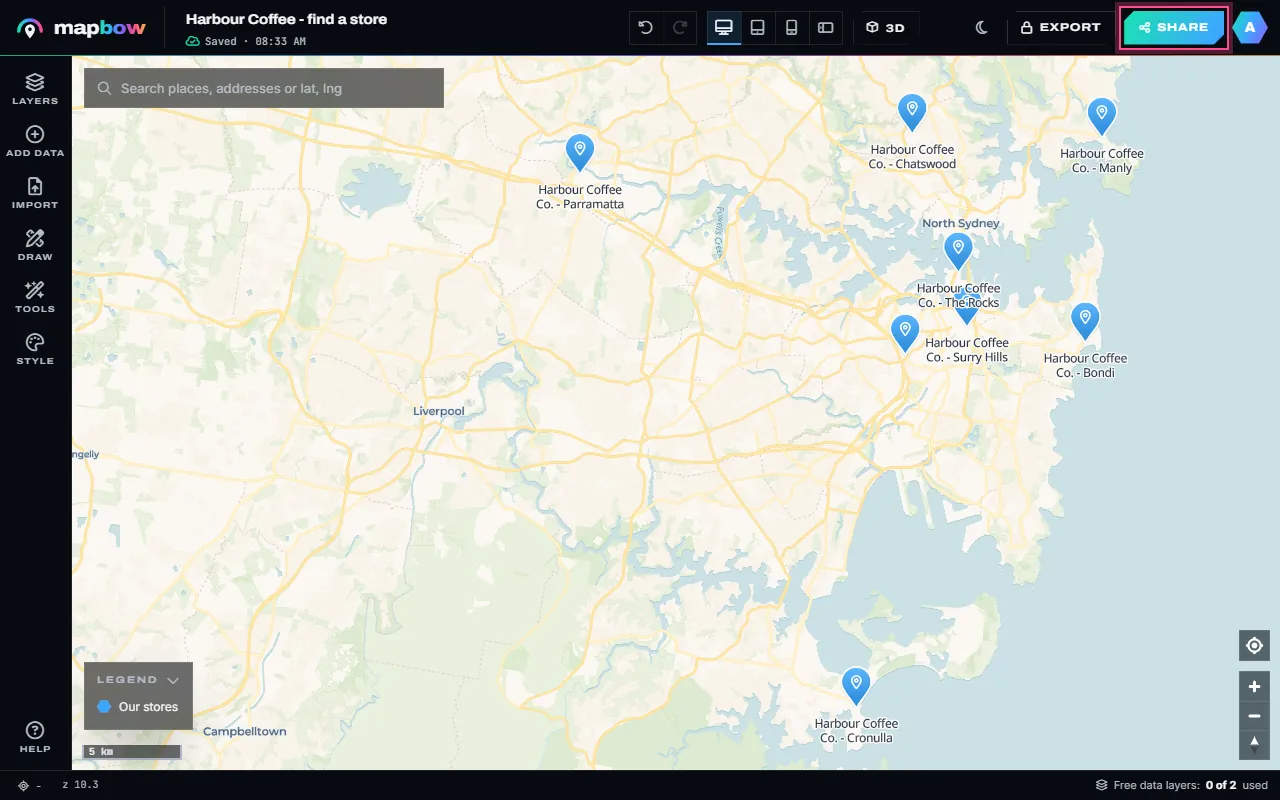
Step 1 A finished map, ready to share. - Turn on the link. Switch on Anyone with the link can view. You get a link and, under it, the embed code. Viewers can look and click, never edit.
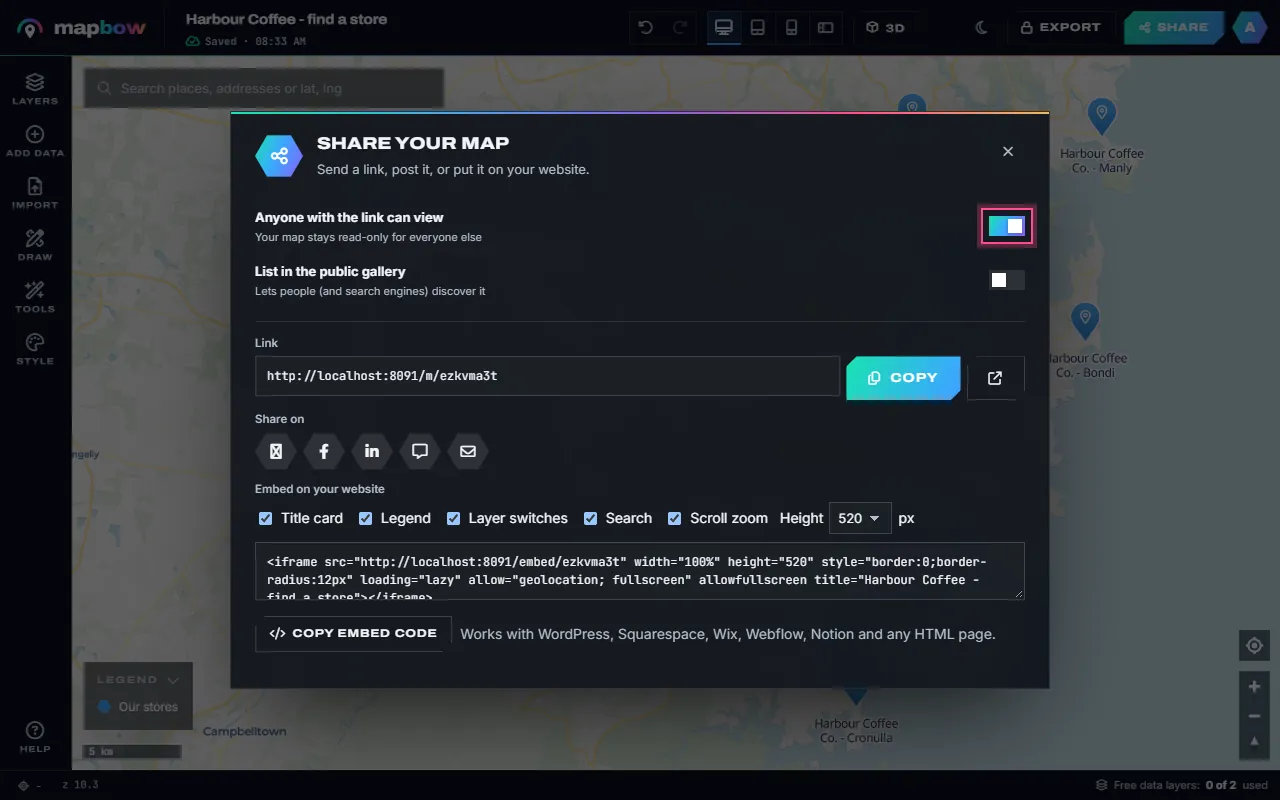
Step 2 Link sharing on. - Choose the options and copy the code. Under Embed on your website, tick what the embedded map shows - Title card, Legend, Layer switches, Search - and whether Scroll zoom is on (turn that off for long pages). Pick a height of 400, 520, 640 or 800 px, then Copy embed code.
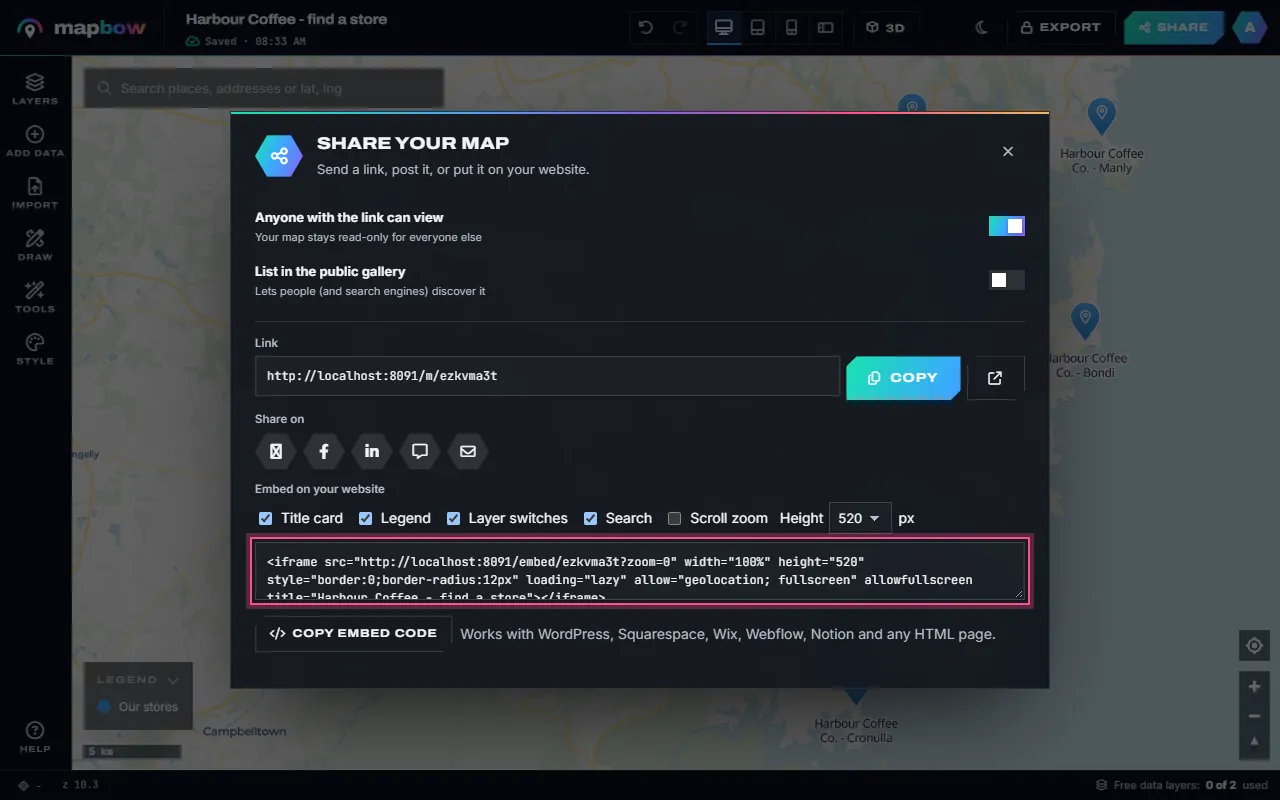
Step 3 Embed options and the iframe code. - Paste it into your page. Paste the code into WordPress (a Custom HTML block), Squarespace, Wix, Webflow, Shopify, Notion or any HTML page. The map is live: updates you make in the studio show up on your site.
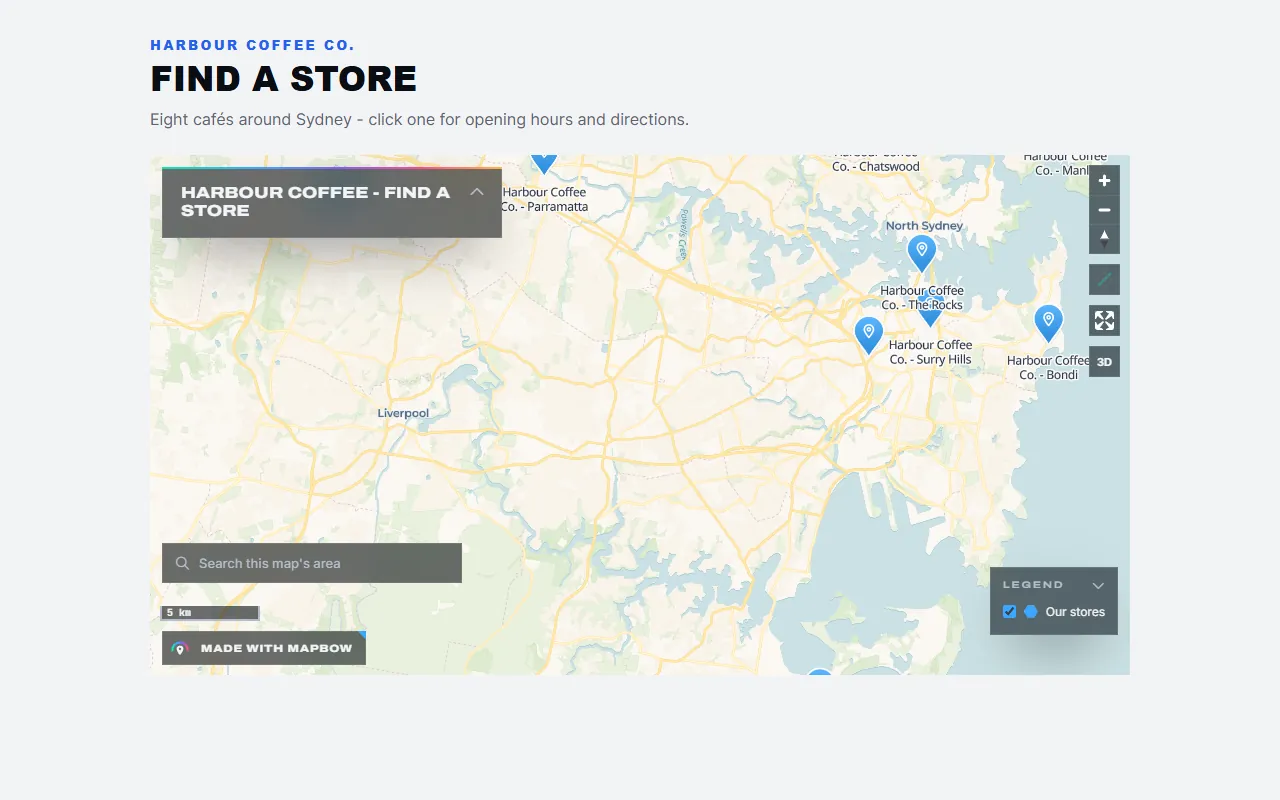
Step 4 The embedded map on a website.
The code is a short <iframe> followed by a one-line text link back to the full map. It looks like this:
<iframe src="https://mapbow.com/embed/abc123" width="100%" height="520" style="border:0;border-radius:12px" loading="lazy" allow="geolocation; fullscreen" allowfullscreen title="Our store locations"></iframe>
If you untick an option, it is added to the address – for example ?search=0 – so you can also change it by hand later.
title attribute: screen readers announce it, which helps accessibility. And keep loading="lazy" so the map only loads when a visitor scrolls near it.Paste it into your site: platform by platform
WordPress (block editor)
- Add a Custom HTML block where you want the map.
- Paste the embed code and press Preview.
- Update the page. On classic editor sites, switch to the Text tab and paste the code.
Squarespace
Edit the page, add a Code block, paste the snippet and make sure Display source is off. Code blocks may require a paid Squarespace plan.
Wix
Add Embed Code → Embed HTML, choose Code, paste the snippet, then drag the frame to the size you want.
Shopify
For a page, open it in the editor, click Show HTML (<>) and paste. For a theme section, add a Custom Liquid or Custom HTML section and paste the code there.
Webflow
Drag an Embed element onto the canvas, paste the code and save. Set the parent element's width to 100%.
Notion
Type /embed, paste the address from the code's src (the https://mapbow.com/embed/… link) and choose Embed link. Drag the block's edges to size it.
Plain HTML
Paste the code anywhere inside <body>. That's it.
Make it responsive
A width of 100% already makes the map fill its column. For height, a fixed value between 420 and 600 pixels suits most layouts. If you would rather keep a fixed shape, wrap the iframe in a container with an aspect ratio:
<div style="aspect-ratio:16/10;width:100%"><iframe src="https://mapbow.com/embed/abc123" style="border:0;width:100%;height:100%" loading="lazy" title="Map"></iframe></div>
Before publishing, use the device preview buttons in the studio's top bar (desktop, tablet, phone and phone landscape) to check how the map looks at each size. On phones, consider a taller map and fewer visible labels.
Keep it fast
- Lazy loading – leave
loading="lazy"on, especially if the map is below the fold. - Lighter layers – thousands of points are fine, but use clustering, and split huge datasets by region where you can.
- Vector basemaps – the light and dark vector styles load quickly and look crisp on high-density screens.
- One map per page – several heavy maps on one page compete for the visitor's connection.
Updating an embedded map
You never need to replace the code. Edit the map in the studio and every embed updates automatically – handy for store locators, event maps and anything that changes often.
Embedding vs. linking vs. exporting an image
| Option | Interactive | Updates itself | Best for |
|---|---|---|---|
| Embed | Yes | Yes | Websites, blogs, intranets |
| Share link | Yes | Yes | Email, chat, social media |
| PNG / PDF export (with any purchase) | No | No | Print, slides, reports |
Troubleshooting
- The map is blank. Check the code was pasted into an HTML/code block, not a text block (which escapes it).
- The map is tiny. Set an explicit height; some builders collapse iframes to 150 px by default.
- The page scrolls into the map. Untick Scroll zoom in the embed options and copy the code again, so visitors scroll past the map; they can still zoom with the buttons or pinch.
- "Refused to connect". Your site's content security policy may block iframes from other domains; allow
https://mapbow.cominframe-src.
Designing a map for embedding
A map that looks great full screen can feel cramped in a 500-pixel box. Before you copy the code, adjust it for its new home:
- Simplify. Show one or two layers by default and let visitors switch on the rest with the layer switches in the legend.
- Frame the start view. Set the starting position and zoom (Tools › Set start view) so the important content fills the frame at your embed size.
- Bigger touch targets. Slightly larger markers make tapping easier on phones.
- Short labels. Long names collide in small maps – move detail into popups.
- Legend and title card. Both can be collapsed by visitors; in a small frame, consider unticking the title card and keeping just the legend.
Accessibility
- Give the iframe a meaningful
title("Map of our 12 stores in Melbourne"). - Put the essential information – addresses, opening hours, a list of locations – in the page text as well, so people using screen readers or keyboard navigation get it without the map.
- Choose colours with enough contrast, and don't rely on colour alone to show meaning.
SEO and embedded maps
Search engines index the page around the map, not the map's contents inside the iframe. To help a page rank, write a useful heading and description near the map, list key places in text, and – for a business – include your address and phone number on the page. The map then becomes the engaging part of a page that is already well described.
Sharing on social media and messaging
For places where you can't embed – social media, chat apps, email – use the share link instead. Shared links show the map's title and description in previews, so give your map a clear title and a short description (Style › About this map) before you send it. The Share panel also has buttons for X, Facebook, LinkedIn, WhatsApp and email.
Frequently asked questions
Is embedding a map free?
Yes. Every map can be shared and embedded free – you just need a free account to switch on sharing. Embedded maps show a small "Made with mapbow" badge, and the code includes a one-line text link to the full map.
Will an embedded map slow down my site?
With lazy loading the map only loads when the visitor scrolls near it, so it doesn't affect your page's initial load.
Can I embed a map in an email?
Email clients don't run interactive maps. Use a PNG export or a screenshot linked to the shared map instead.
Does the embedded map work on mobile?
Yes. It is touch-friendly and adapts to the width of its container.
Can I hide the title card or legend?
Yes. Before you copy the embed code, untick Title card, Legend, Layer switches, Search or Scroll zoom to leave them out of the embedded map.