How to Make a Store Locator Map for Your Website
Build a store locator map for your website without code: import your locations, add search, phone and hours in popups, style by store type and embed it.
Updated · by the mapbow team
A store locator answers your customers' most practical question: "where is the nearest one, and is it open?". You don't need a developer or a monthly locator subscription to build one. This guide shows how to build a clean, mobile-friendly store locator in mapbow and embed it on your website.
What a good store locator needs
- Every location, accurately placed.
- Search so customers can jump to their suburb or city.
- Useful popups: address, phone, opening hours, a "Get directions" or website link, maybe a photo.
- Clear categories (flagship, outlet, service centre, stockist) with a legend.
- Mobile first. Most locator visits are on phones.
Prepare your location list
Create a spreadsheet with one row per store:
| name | latitude | longitude | address | phone | hours | type | website |
|---|---|---|---|---|---|---|---|
| Downtown | 41.8837 | -87.6278 | 100 W Madison St | (312) 555-0100 | Mo-Sa 09:00-18:00 | Flagship | https://… |
If you don't have coordinates, leave the latitude and longitude columns out: when you import, choose Addresses and mapbow looks each store up from its address. For a store it can't find, get the exact position with the latitude and longitude finder and paste the values in.
Build the locator, step by step
- Import your store list. Open Import and drop your spreadsheet of stores (CSV or Excel), or paste the rows. Include a name, the address, phone, website and opening hours - every column can appear in the popup.
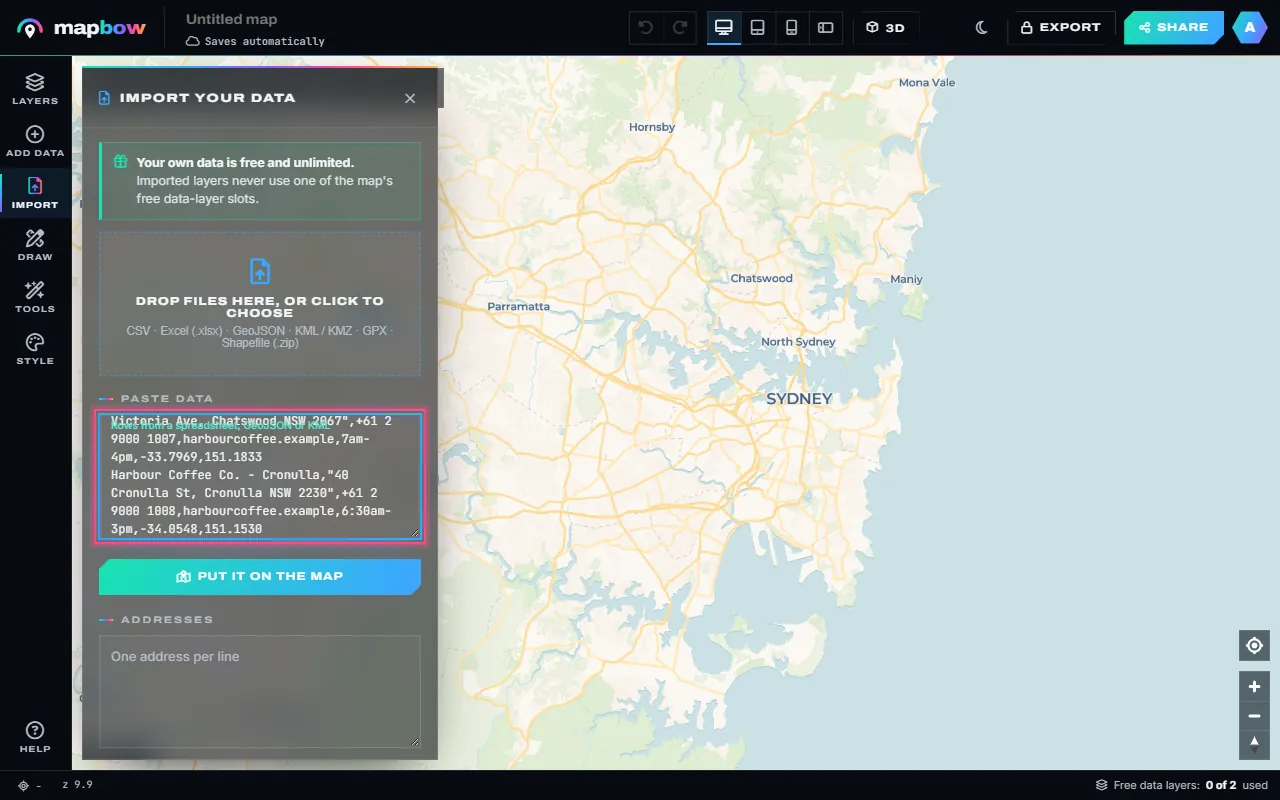
Step 1 A store list pasted from a spreadsheet. - Brand the pins. Select the layer and pick your colour and an icon (or an emoji). Pins, badges or dots - whatever reads best at the zoom your customers use.
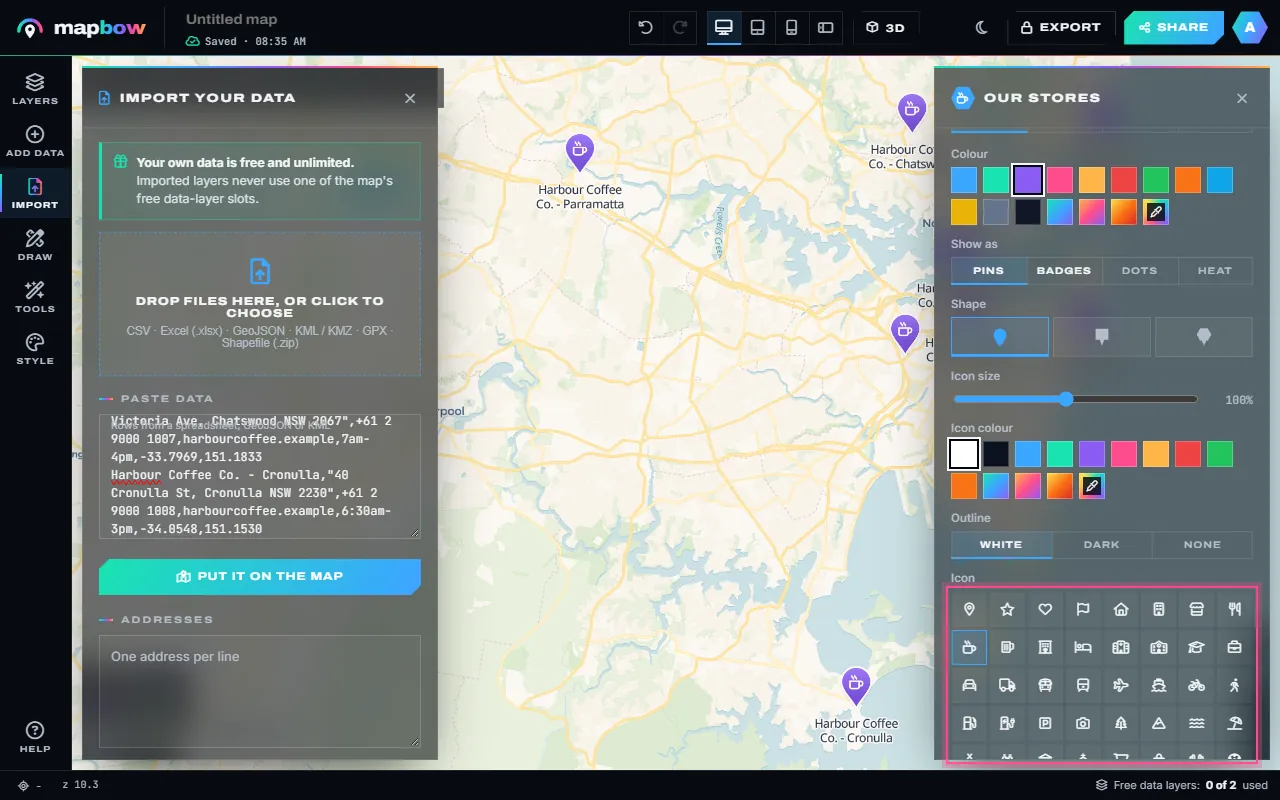
Step 2 Purple pins with a coffee-cup icon. - Make the popup useful. In the Popup tab choose a design and the fields to show. Phone numbers become tap-to-call links, websites open in a new tab, and Directions opens Google Maps.
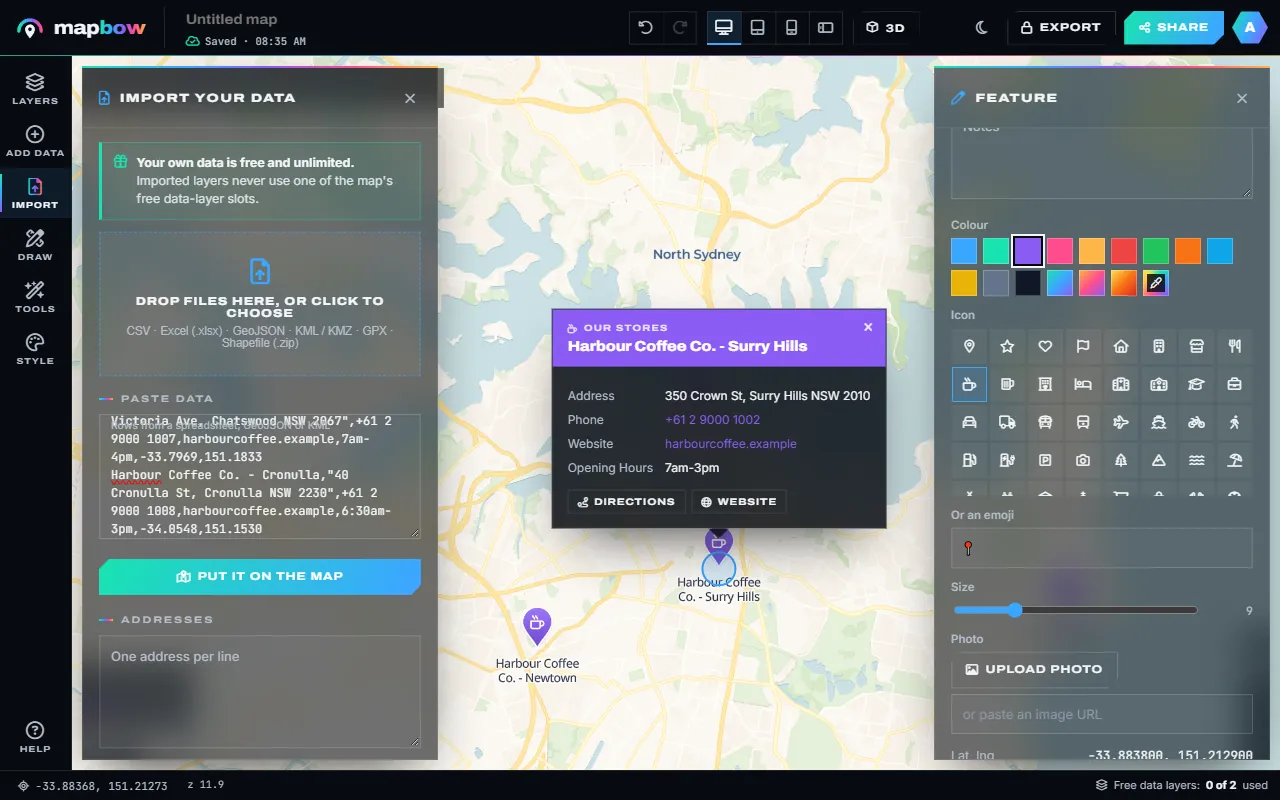
Step 3 A Banner popup with address, phone, website, hours and directions. - Share it and embed it. Press Share, switch on the link, keep Search ticked so customers can look up their suburb, and copy the embed code onto your "Find a store" page.
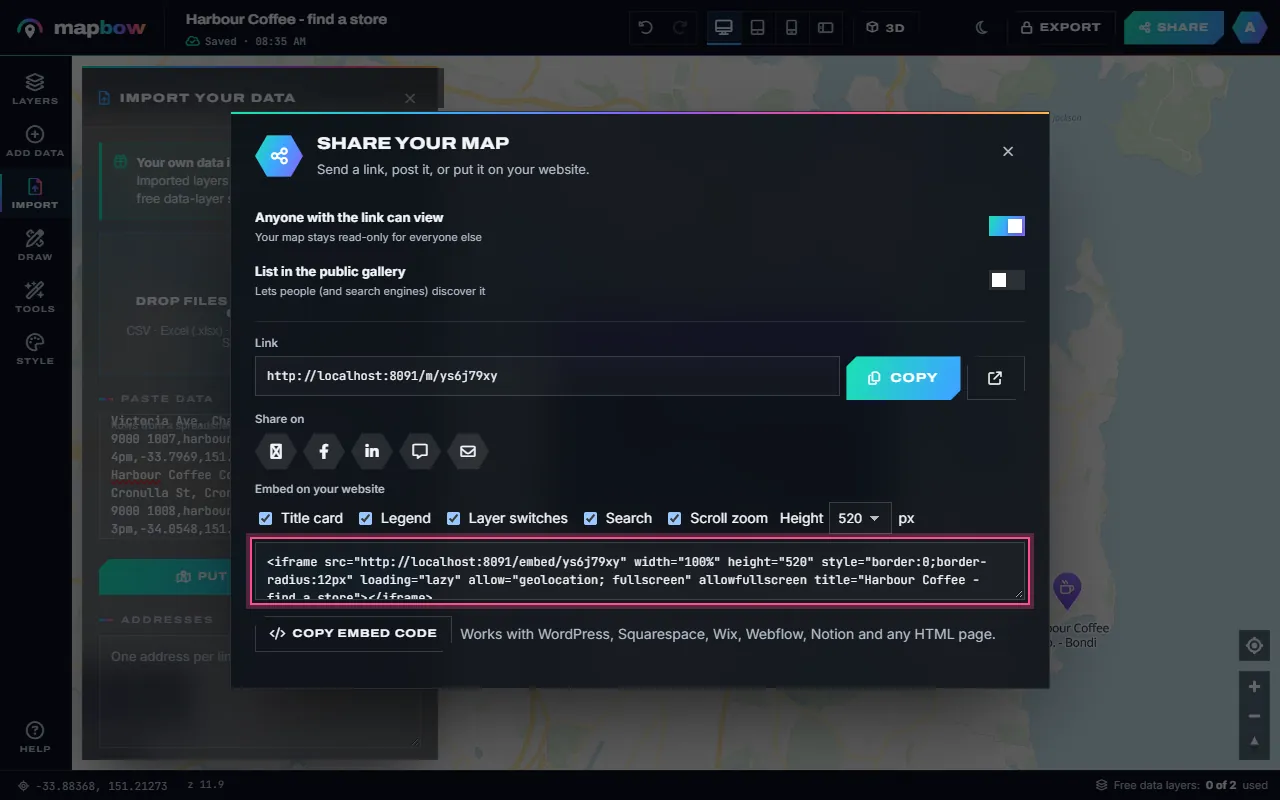
Step 4 The embed code, with the search box switched on. - What your customers see. The shared map opens full screen on phones and computers: a title card, the search box, the legend, and your popup on every store.
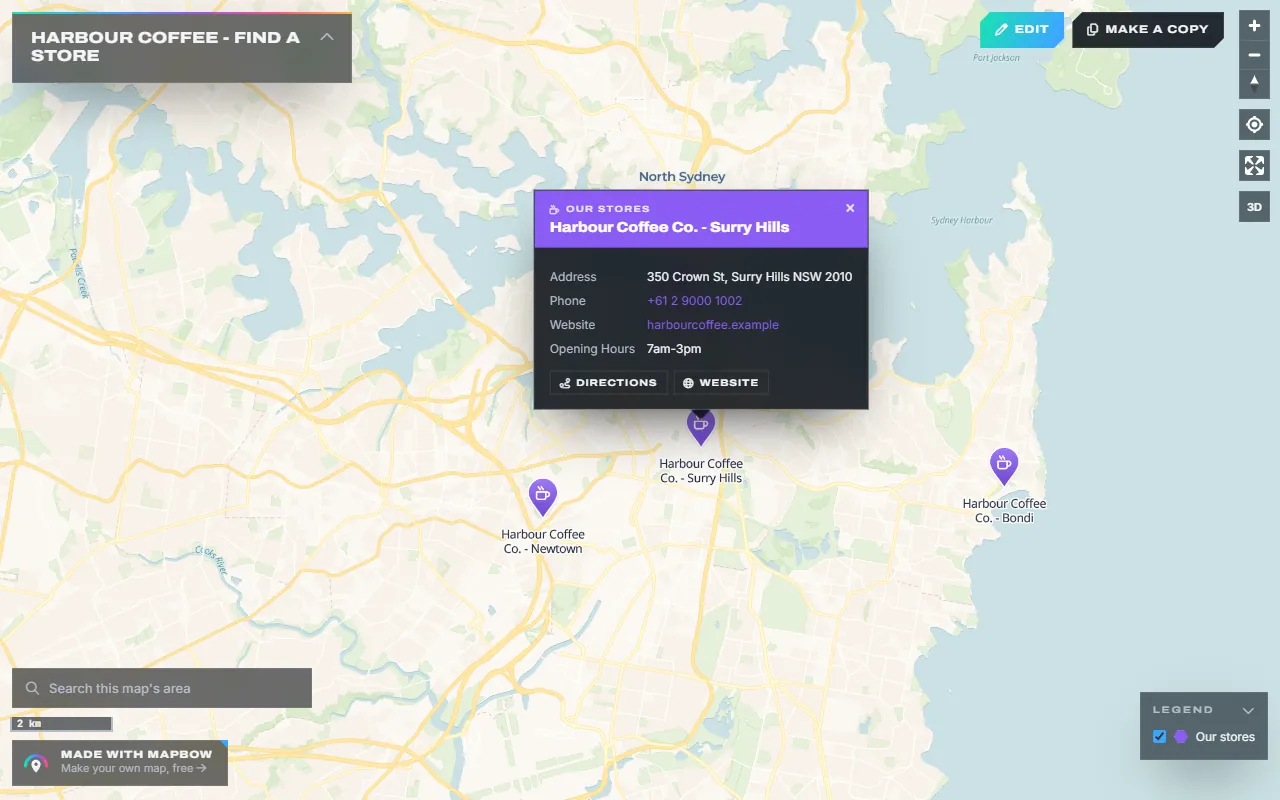
Step 5 The live store locator.
Fine-tune the locator
- Style by type. In the layer's Style tab, use Colour by field on the
typecolumn so flagships, outlets and stockists each get a colour and a legend entry. - Design your own popup. Choose Your own in the Popup tab to set an accent colour in your brand, a photo from a column, your own text such as
Open {{hours}}, and Directions, Website and Call buttons. Save it to My designs to reuse on other maps. The popup guide walks through it. - Label the stores by setting Label each feature with to the name column – best for a few dozen stores; with hundreds, leave names in the popups.
- Choose a basemap. In Style, Voyager, OpenStreetMap or Esri Streets help customers recognise streets.
- Turn on clustering (Cluster nearby points) if you have more than a hundred or so locations.
- Set the start view with Tools › Fit to data and Tools › Set start view, framing all stores or your main market.
Preview on mobile
Switch the device preview in the top bar to the phone view (and phone landscape). Check that popups fit the screen, the legend doesn't cover the map, and the search box is easy to reach. Shorten long column values if needed – you can edit any cell in Data › Open the table.
Embed it on your site
Under Share › Embed on your website, tick Search and Legend, choose a height (400, 520, 640 or 800 px) and paste the code into a "Find a store" page. Full instructions for WordPress, Shopify, Squarespace, Wix and Webflow are in how to embed a map on your website.
Keeping it current
Opening a new store? Add a pin, add a row in the attribute table, or re-import the sheet – the embedded locator updates immediately, with no code changes on your site.
Store locator SEO tips
- An embedded map is great for people, but search engines read text. Also list each store's name, address and phone as plain text on the page.
- Give each major store its own page with its address, hours and directions.
- Keep your name, address and phone consistent everywhere they appear online.
Beyond retail
The same approach works for dealer and stockist finders, clinic locators, ATM and branch maps, franchise directories, charging networks and event venue maps.
Popup content that converts
The popup is where a visitor decides to call, visit or click through. Order it the way people read – in the Popup tab, tick the fields in Popup shows, or write the order yourself in a Your own design:
- Store name as the popup title.
- Address on one or two short lines.
- Opening hours, written plainly ("Mon–Sat 9am–6pm").
- Phone number – on phones it becomes tap-to-call.
- A link to the store's page, or a Directions button.
- A photo of the shopfront, which helps people recognise it on arrival. Put image links in a column and pick it as the popup's photo.
Multi-brand and stockist locators
If you sell through other retailers, import one layer per retailer or use Colour by field on a retailer column, with the retailer's name in the legend. For a "find a dealer" map, add a services column (sales, service, parts) and show it in the popup so customers find the right location.
Measuring whether it works
Watch the page that hosts your locator in your website analytics: time on page, clicks on phone numbers and outbound clicks to directions all indicate the locator is doing its job. If most visits are on mobile, make sure the map sits near the top of the page.
Frequently asked questions
Do I need to code to add a store locator?
No. Import your stores, style the map and paste one embed code into your website.
Can customers search the map?
Yes. Keep Search ticked in the embed options and customers can jump to any city, suburb or address.
How do I update store hours?
Edit the cell in the attribute table (Data › Open the table) or re-import your spreadsheet. The live map updates instantly.
Will it work on Shopify or WordPress?
Yes – any site that lets you add an HTML or code block, including Squarespace, Wix, Webflow and Notion.
Does it cost anything?
Building and embedding the locator is free; sharing needs a free account. Optional extra data layers are $5 each.